
Getting started with RT: from your first login to your first resolved ticket
This tutorial walks you through your first day in Request Tracker (RT), the tool your team uses to receive, track, and answer requests. By the end you will have logged in, found your way around, and taken one request from a new ticket to a resolved one.
A ticket is RT's record of a single request or task, from the moment it arrives to the moment it is done. Working in RT means creating tickets, replying to them, and resolving them. That full cycle is what you will practice here.
You do not need to have used RT before. You do need a login and a running RT; the "Before you start" section lists everything.
This guide describes a typical RT configuration; your RT may be set up differently.
Before you start
You need three things:
The web address of your RT. Your administrator gives you this. It looks like
https://rt.example.com.A username and password. Your administrator creates your account. (Some organizations use a company sign-on instead. If yours does, login happens automatically: you might see a brief redirect, and then you are on your homepage.)
A queue to work in. A queue is a container that groups related tickets, much like an inbox a whole team shares. Ask your team lead which queue your team works in; this tutorial uses one called
General, RT's default.
Log in to RT
Open your RT web address in a browser. RT shows the login page.
Type your Username and Password.
Click Login.
RT opens your homepage. You are now signed in.
If your organization uses company sign-on, you may never see this page; you land on your homepage directly.
To sign out when you are done, open the account menu, the main menu entry showing your initials (or your picture once you upload one), and choose Logout.
Get your bearings: the RT homepage
Your homepage is the page RT shows after login. It is built from portlets: small panels that each show one list or tool, such as the tickets you own, new tickets waiting for someone to pick up, or a quick ticket-creation form. To change what your homepage shows, open the account menu and choose Settings, then Home: the Customize Home page lets you pick the dashboard RT uses as your homepage and create dashboards of your own (see Dashboards).
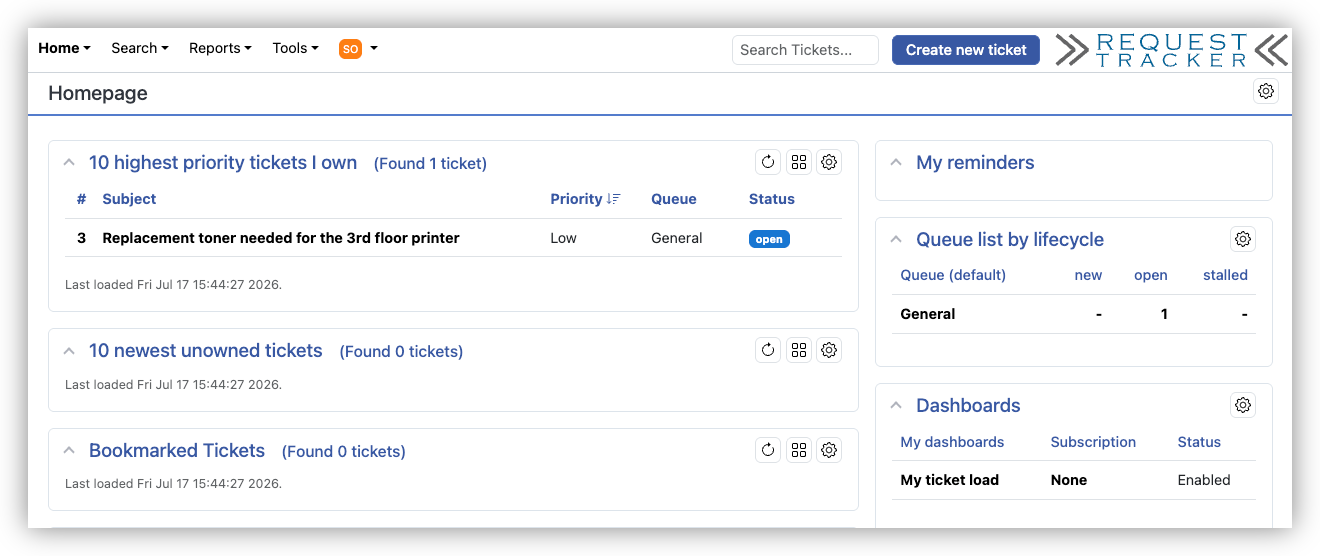
Three things sit at the top of every page and are worth finding now:
The main menu: Home, Search, Reports, and more, ending with the account menu you met at login. Home always brings you back to this page.
The Search Tickets box toward the right. Type a ticket number to go straight to that ticket, or a word from a subject to find matching tickets that are still open.
The Create new ticket button next to it. This is how you open a new request, and it is your next step.
Create a ticket
Create a ticket for any request or task you want RT to track. Requests often arrive by email, but plenty come in by phone or in person, and then someone on the team records them. That is what you will do now: a colleague at the front desk has asked for a second monitor, and you will enter the request for them.
Click Create new ticket at the top of any page. RT opens the ticket-creation form in the default queue.
Check the Queue shown in the Basics box. If you need a different queue, choose it from the dropdown.
Look at Requestors. RT fills in your own address, assuming the ticket is for you. This one is not, so remove your address and type the name or email address of the person the request is for, then pick them from the suggestions RT offers.
In Subject, write a short summary of the request, for example
Second monitor for the front desk check-in station. This is what people see in ticket lists, so keep it specific.In the message box below, describe the request in full. This first message becomes the start of the ticket's history.
Before you submit, know that creating the ticket sends email: RT mails the Requestor an automatic confirmation. RT runs on email, so this is normal and predictable, not a mistake. If you would rather not notify the Requestor this time, tick Do not send email to Requestors on create, the checkbox just under the Requestors field. (Similar checkboxes sit under Cc and Admin Cc.) This page does not show the full list of who gets mailed; you will see that list on the update screen when you reply, a little later.
Fill in any other fields your queue requires, and leave the rest at their defaults for now.
Click Create.
RT saves the ticket and shows its display page, with a confirmation like Ticket 5 created in queue 'General' at the top. The number (here, 5) is the ticket's permanent ID. RT has also mailed the Requestor an automatic confirmation carrying that number; the ticket's history, further down the page, records the outgoing message.
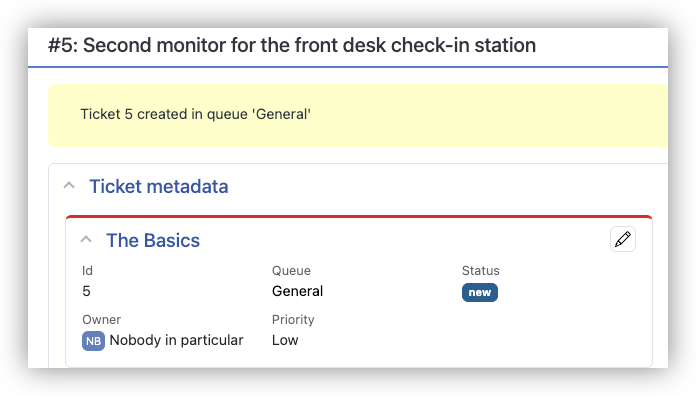
Take a moment to read the display page. The Basics shows the ticket's Status (a new ticket starts as new), its queue, and its Owner: the person responsible for working it, initially Nobody in particular. You will be handling this ticket, so open Actions on the page menu, the menu for the page you are on, and choose Take to make yourself the Owner.
Below that, the People box lists everyone connected to the ticket, grouped by role: the Owner working it (now you), the Requestors the ticket is for (the address you entered), and two more lists, Cc (people copied on replies) and AdminCc (staff copied on everything, internal notes included). Requestors, Ccs, and AdminCcs are the ticket's watchers: the people who receive email about it. Roles matter because they decide who receives email, which the next sections put to work.
Reply to the ticket
A reply is a message to the people the ticket is for. Replying emails your message to the ticket's Requestors and Ccs. Use it to answer them, ask a question, or tell them what you have done.
A reply is not the same as a comment. A comment is an internal working note: it is not emailed to the Requestors or Ccs. It is recorded on the ticket (and sent to AdminCcs, if there are any). On the update screen the reply box is shaded red and the comment box yellow, so you can tell at a glance whether your words will leave the building.
On the ticket's display page, open Actions on the page menu and choose Reply.
Type your message in the box. (It is shaded red: a reminder that the Requestor will receive it.)
Leave Update Type set to Reply to requestors.
Check the Scrips and Recipients box below the message. It lists exactly who will be emailed when you send this update, with a checkbox next to each address so you can skip someone this one time. For this reply it lists the Requestor you entered, plus any internal addresses your queue copies on ticket mail (its AdminCcs). One address is missing: yours. RT does not email you your own update.
While you are here, flip Update Type to Comments (Not sent to requestors) and watch the screen: the message box turns yellow, and the Requestor drops out of Scrips and Recipients, leaving only the AdminCcs. That is a comment's whole audience. Flip back to Reply to requestors and the box turns red again.
Click Update Ticket.
RT returns to the display page and confirms Correspondence added. Your message now appears in the ticket's history, and RT has emailed it to the Requestor. If the ticket was still new, RT also sets its status to open for you, to show that work has started.
Update the ticket as you work
Working a ticket is more than replying. As you learn more, you also change the ticket itself. Say you want to sharpen the subject line so the ticket is easier to spot in a list.
On the ticket's display page, find the Basics box and click the edit pencil next to it. RT opens the Basics for editing.
Change the Subject, for example to
Second monitor for front desk (approved).Save your changes.
RT returns to the display page showing the new subject, and records the change in the ticket's history.
A real ticket collects many updates on its way to done: replies to the Requestor, internal comments, status changes, and small edits like this one. RT keeps them all in the history, so the ticket stays a full record of what happened and when.
Resolve the ticket
When the request is handled, resolve the ticket: set its status to resolved. Resolving also emails the Requestor a short standard notice that the request has been resolved.
On the ticket's display page, open the Actions menu and choose Resolve.
RT opens an update screen with Status already set to
resolved. Add a closing note if you like: what the fix was, or anything the next person who reads this ticket should know. The note is a comment (its box is yellow), so it stays internal; the Requestor's resolved notice is fixed text and does not include what you type here. The Scrips and Recipients box shows the split: your note goes only to the AdminCcs, while the Requestor is listed for the resolved notice. If you leave the box empty, RT records just the status change and adds no comment.Click Update Ticket.
The display page returns with Status now resolved. You have taken a request through its whole life in RT.
One more thing worth knowing: the Actions menu changes with the ticket's status. On the ticket you just resolved it offers Re-open rather than Resolve, because re-opening is the common next step from here. The Actions menu is a shortlist of common next steps from where the ticket is now, and your administrator decides what appears on it and how each entry is labeled. To move a ticket to a status that is not on the menu, use the Status dropdown on the update screen, which lists the statuses the queue's lifecycle allows from here. A lifecycle is the map of a ticket's statuses and the steps allowed between them.
Who gets email
Email is the part of RT new users worry about most, so here is the whole story. Notifications follow the ticket's roles, and they are predictable:
When a ticket is created, the Requestor gets an automatic reply confirming the ticket exists and giving its number. At the same time RT notifies the ticket's Owner and any AdminCcs and Ccs that a new ticket has arrived, so the people responsible for it know right away. (Your walkthrough ticket did this: RT recorded the outgoing mail in the ticket's history the moment you created it.)
When someone replies, the message is emailed to the Requestors and Ccs, and a copy goes to the Owner and AdminCcs.
When someone comments, Requestors and Ccs get nothing. Only AdminCcs are notified.
When the ticket is resolved, the Requestor gets the standard "your request has been resolved" notice.
By default, RT does not copy you on your own updates. You do not get a mailed copy of a reply or comment you made yourself, since you already know what you did. That is why your own address did not appear in the Scrips and Recipients box. This is a preference, not a fixed rule: to get copies of your own updates, open the account menu, choose Settings, then Preferences, and in the Mail section set Outgoing mail to Yes.
Before any update goes out, the Scrips and Recipients box on the update screen shows the exact recipient list, so you never have to guess. If email in your RT behaves differently, your administrator has customized the notifications. Ask your team how notifications are set up for your queue and why; there is usually a good reason, tied to how the team uses RT.
Where to go next
You now know the core loop: create, reply, resolve. Two good next steps:
Dashboards shows you how to build your own pages of ticket lists and charts, so the tickets you care about find you.
The Ticket Query Builder is RT's search engine. When you need more than the Search Tickets box, it finds tickets matching any criteria you can describe.
For administrators
The behavior this tutorial describes is configurable: statuses and the steps between them by Ticket Lifecycles, and email notifications by scrips (see Scrip Conditions & Actions).
← Back to index